GitHub Issues Import: Tools and Steps for Safe Migrations
Easily migrate GitHub issues with our guide on effective tools and steps, ensuring a safe transfer from various platforms like Jira or Trello.

Use GitHub's native transfer feature for moving single open issues between repositories in the same account or org. For bulk imports from Jira, Trello, or a spreadsheet, prepare a CSV or JSON file and run it through a GitHub Action or a zero-config CLI, always starting with a dry run.
Three tools cover almost every scenario:
- Native transfer (
gh issue transferor the repo UI) for one-off moves - Issue Importer Action for CI-driven bulk imports with validation
- upload-git-issues for a fast, no-setup CSV upload from your terminal
Before touching any of them, confirm your token has the right scopes and test on a handful of rows. Skipping that step is how teams end up with 400 mislabeled issues and no easy undo button.
Key Takeaways
A safe GitHub issues import always starts with a dry run and ends with a metadata check, no matter which tool does the heavy lifting.
| Point | Details |
|---|---|
| Match tool to scenario | Use native transfer for same-org moves, Issue Importer Action for CI pipelines, upload-git-issues for fast one-off CSV uploads. |
| Validate before importing | Run a dry run on a small batch first to catch CSV formatting errors before they hit production. |
| Set minimal token scopes | Grant only issues: write and metadata: read, adding repo scope only when private repos are involved. |
| Pre-map metadata | Build a label and assignee mapping table before import to avoid duplicate labels and unresolved usernames. |
| Escalate complex migrations | SwarmStack offers structured planning sessions for multi-team migrations that need stakeholder alignment before execution. |
Table of Contents
- Which Tools Handle GitHub Issues Import Best?
- Should You Transfer Issues or Bulk Import Them?
- How Do You Prepare and Run a CSV or JSON Import?
- How Do You Map Labels, Assignees, and Milestones Correctly?
- How Do You Test an Import Before Running It for Real?
- What Should You Check After the Import Finishes?
- When Should You Bring in a Structured Planning Session?
- Frequently Asked Questions
- Sources
Which Tools Handle GitHub Issues Import Best?
Pick based on scale and source, not brand familiarity.
- GitHub native transfer. Built into the UI and the
ghCLI, this moves an open issue to another repository you have write access to, keeping its comments intact. It's the right call for consolidating a handful of issues after a repo split or merge, but it only works within the same user or organization, and private repositories can't transfer to public ones. - Issue Importer Action. This GitHub Action reads CSV or JSON, validates it, and creates issues with labels, assignees, and milestones attached. It's built for pipelines: drop it into a workflow file, point it at your data, and let CI do the heavy lifting.
- upload-git-issues. A zero-config CLI that walks you through authentication and repo selection, then parses your CSV and uploads it. It's the fastest path when you just need issues in GitHub today and don't want to write a YAML file.
- Repo-to-repo migration scripts. Tools like github-issue-mover handle larger transfers between repos, preserving comments and assignees while offering options like closing the source issue after a successful move.
Pro Tip: If you're only moving a dozen issues and they already live in GitHub, skip the tooling entirely. Native transfer is faster and there's nothing to configure.
Should You Transfer Issues or Bulk Import Them?
The answer depends on where your issues currently live and how many you're moving.
Transfer wins when you're staying inside GitHub. It's a same-platform move, so authorship, comments, and timestamps come along for free. The catch: it only works between repos you have write access to, and it moves issues one at a time (or via a script that loops the CLI call), which gets tedious past a few dozen items.
Bulk import wins when issues are coming from Jira, Trello, Linear, or a spreadsheet export. You control the mapping, but you're also responsible for reconstructing metadata that doesn't map cleanly:
- Comment authorship, which the GitHub API can't assign to the original poster
- Custom fields with no direct GitHub equivalent
- Cross-links between issues that reference old IDs
For anything over a few hundred issues with tangled dependencies, a purpose-built migration script beats hand-editing a CSV. That's also the threshold where a planning session pays for itself, which the SwarmStack section below covers.
How Do You Prepare and Run a CSV or JSON Import?
Your file needs a handful of fields, and getting the header row right saves you from a failed run halfway through.
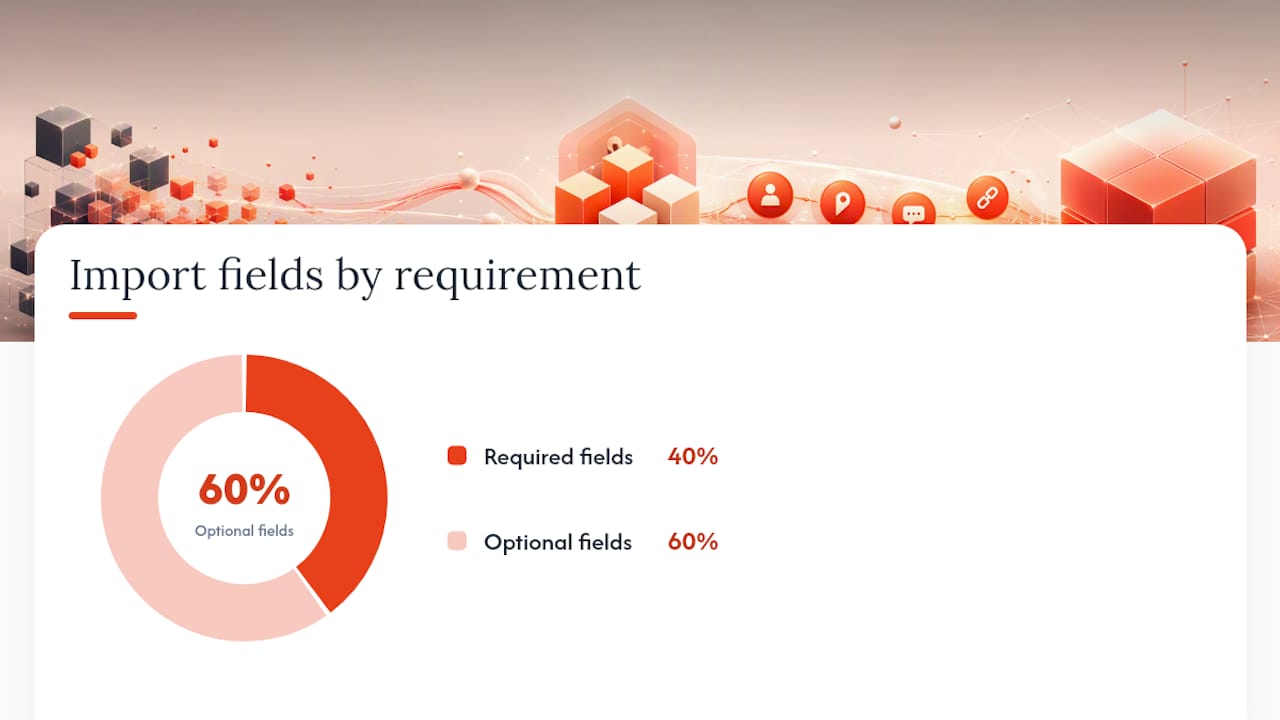
Required fields: title, body. Optional but common: labels, assignees, milestone.
A minimal JSON record looks like this:
{
  "title": "Fix login redirect loop",
  "body": "Users report being redirected to /login repeatedly after SSO.",
  "labels": ["bug", "auth"],
  "assignees": ["jsmith"],
  "milestone": "v2.4"
}
A CSV header row covers the same ground: title,body,labels,assignees,milestone.
- Export and clean your source data. Strip HTML formatting quirks and normalize label names before you touch GitHub.
- Choose your tool. For CI-driven imports, configure Issue Importer Action in a workflow file pointing at your CSV or JSON path. For a quick one-off, run
npx upload-git-issuesand follow the prompts. - Set up authentication. Actions typically use the built-in
GITHUB_TOKEN, but it needsissues: writeandmetadata: readpermissions set explicitly in the workflow. CLI tools usually ask for a personal access token withreposcope, especially for private repositories, as importer projects document. - Run a dry run first. Both tools support a dry-run or preview mode that reports what would be created without touching your repo.
- Read the dry-run report carefully, fix any flagged rows, then run the real import.
| Field | Required | Notes |
|---|---|---|
| title | Yes | Plain text, no markdown headers |
| body | Yes | Supports GitHub markdown |
| labels | No | Must match existing labels or be auto-created |
| assignees | No | Must be valid GitHub usernames with repo access |
| milestone | No | Matched by exact name string |
Pro Tip: Run your first dry run on 10 rows, not 1,000. It's faster to spot a broken column mapping in a small batch than to scroll through a 500-line error log.
How Do You Map Labels, Assignees, and Milestones Correctly?
Metadata is where most bulk imports go sideways, mostly because source systems and GitHub don't share a data model.
- Labels: decide up front whether to pre-create your label set or let the tool auto-create missing labels on the fly. Pre-creating gives you control over colors and avoids duplicate near-matches like "bug" and "Bug."
- Assignees: usernames rarely match between Jira and GitHub. Build a mapping table before you import, and set a fallback assignee (often the migration owner) for anything that doesn't resolve.
- Milestones: GitHub matches by exact name string, so "Sprint 12" and "sprint-12" won't merge. Standardize naming in your source export first.
- Projects and custom fields: most import tools can't populate GitHub Projects directly. Instead, select the newly created issues from the issue list and add them to a project afterward.
- Parent/child relationships: re-create these with a dedicated ID column mapped to project custom fields, or reference the original ticket ID in the issue body so the link survives even without native support.
How Do You Test an Import Before Running It for Real?
A staging environment costs you ten minutes and saves you an afternoon of cleanup.
- Create a test repository that mirrors your production repo's labels and milestones exactly, since a matching test environment cuts down on manual cleanup after the real import.
- Run your chosen tool with its dry-run or verbose flag and read every warning line, not just the summary.
- Check your token or PAT scopes before you start. Grant
issues: writeandmetadata: read, and nothing broader, especially if the token is shared across workflows. - Common dry-run failures: malformed CSV quoting, label names with trailing spaces, and usernames that don't have repo access yet.
Pro Tip: If a dry run reports zero errors on your first try, double-check it actually processed the full file. An empty or truncated CSV will also "pass" with zero errors.
What Should You Check After the Import Finishes?
Don't close the tab the moment the script says "done." Bulk imports leave loose ends that surface days later.
- Spot-check a sample of created issues for title and body fidelity, plus correct labels, assignees, and milestones.
- Confirm comments made it over, and check whether they carry a provenance header crediting the original author, since the GitHub API generally posts migrated comments under the account running the script rather than the original poster.
- Look for broken cross-references like "Closes #5," which won't resolve correctly once issue numbers change; consider setting the source repo to read-only so old links stay valid for anyone following them externally.
- Either close the source issues with a note pointing to the new GitHub URLs, or leave a migration comment so nobody works from a stale copy.
When Should You Bring in a Structured Planning Session?
Straightforward imports don't need a committee. Complex ones do, especially when multiple teams disagree on label taxonomy or when the migration doubles as a chance to rewrite your workflow.
- Multiple stakeholders with conflicting opinions on how labels, milestones, or project structure should look post-migration
- A migration large enough to need an RFP or vendor comparison before you commit
- Cross-team dependencies where getting the mapping wrong breaks someone else's board
A staged approach, importing in manageable batches and mapping to Projects only after verifying metadata, lowers risk on any migration big enough to have real blast radius. SwarmStack runs structured sessions where human experts and AI specialists work through exactly that kind of mapping decision together, then produces a plan you can export directly. Teams already migrating from Jira can start with SwarmStack's Jira import best practices, and anyone weighing tool choices first might want a broader look at planning tools before locking in a workflow.
Quick Advice From Someone Who's Cleaned Up a Bad Import
The pitfalls repeat: broken cross-references, mismatched assignees, missing labels nobody pre-created. The fix is boring and reliable: test, dry run, import, verify. Skip a step and you'll be back here anyway.
Get a Migration Plan Instead of Guesswork
If your migration involves more than a clean CSV and one repo, the tools above will get you partway, then leave you stitching together label decisions and stakeholder opinions on your own. SwarmStack runs a structured planning session where your team and AI specialists work out the label taxonomy, assignee mapping, and rollout order before a single issue moves, then exports the resulting plan straight to GitHub. You skip the trial-and-error cycle of running an import, finding out the mapping was wrong, and starting over. If security review is part of your process, SwarmStack's trust and data privacy details cover how session data is handled. Check the SwarmStack pricing page to see which plan fits a one-time migration session versus ongoing planning work, or start directly at Swarm-stack to set up your first session.

Frequently Asked Questions
Can I import GitHub issues from a CSV file directly? Yes. Tools like upload-git-issues and Issue Importer Action both read CSV files with a title and body column at minimum, plus optional labels, assignees, and milestone columns.
Does GitHub's native transfer feature work between different organizations? It works between repositories where you have write access, which usually means the same user or organization. Moving issues across unrelated orgs typically requires a migration script or manual re-creation instead.
What permissions does a GitHub token need for bulk issue imports?
At minimum, issues: write and metadata: read. Private repository imports or cross-repo transfers usually call for a personal access token with repo scope rather than the default Actions token.
Will comments keep their original author after a bulk import? Usually not. The GitHub API generally posts imported comments under the account running the migration, so many tools prefix each comment with a note crediting the original author and timestamp for provenance.
How do I avoid broken references after moving issues? Cross-references like "Closes #12" won't resolve correctly once issue numbers change. Keep the source repository readable, or add a note in each migrated issue linking back to the original for context.
Sources
- Transferring an open issue to another repository — GitHub Docs
- Issue Importer Action — GitHub Marketplace
- dsanchezcr/issue-importer-action — GitHub
- github-issue-mover — integrixy